Create a New Mod
Creating a new mod (as a plugin) requires the SDK, Mod Tools plugin and enabling modding support via a launch command.
This feature and the SDK are still under development by Affray and me, expect issues and certain limitations!
Enable Modding
Add the following launch argument:
-enablemods to enable the mod support
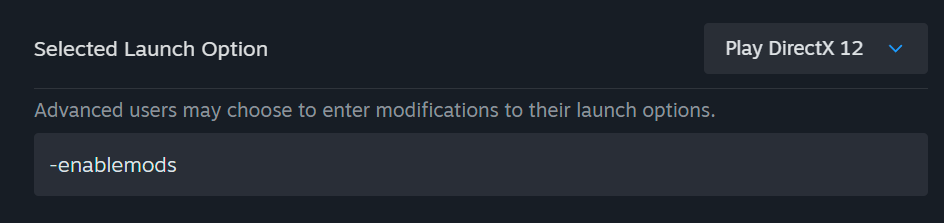
Other useful arguments:
-allowoldmods allows mods that are listed as for an older version of the game
-allowunversionedmods allows mods that have no game version listed
-enablerawpakmods enables mounting pak based mods with asset registry support but no binaries, checksum or other advanced features
Install the Mod Tools Plugin
To get correctly exported mod files, you need to install the Modding Tools plugin from the following link:
https://github.com/AffrayCo/SCP5K-Mod-Tools
Next, install and enable the plugin in the project settings.
- After downloading the plugin, place the contents in:
SCP5K_SDK\Plugins - In your SDK project, head over to
Edit > Pluginsand enable the Modding plugin. - Restart the editor.
Create a New Plugin
- Just like before, go to the Plguins window and create a new Blank plugin.
- Make sure to fill out the Author and Description fields!
- Add your files in the new plugin folder. This will be the folder of your mod where you can add your content.
Mod Packaging
Once you are done with your mod, it needs to be packaged with an asset registry so that the game can find it and load correctly.
Next, download the SCP5K MOD PROFILE and place it in UE_4.27\Engine\Programs\UnrealFrontend\Profiles
- Navigate to
Window > Project Launcher > Edit Profile - Under
Package, change theLocal Directory Pathto your desired output folder. This is where the mod will be packaged to. - Next, under
Cook, make sure that theRelease versionis correctly set and set theName of the DLCto match your mod's name. - Go back and
Launch this Profile. - Your mod should now be packaged and can be found in the output folder, for example,
SCP5K_SDK\Mods\WindowsNoEditor\Pandemic\Plugins.
Editing Mod Descriptor
Open the .uplugin file in the plugin folder and make sure to fill out any missing fields.
Example mod descriptor:
{ "FileVersion": 3, "Version": 1, "VersionName": "1.0", "FriendlyName": "CustomWeaponTest", "Description": "Test mod", "Category": "Mods", "CreatedBy": "Unselles", "CreatedByURL": "", "DocsURL": "", "MarketplaceURL": "", "CanContainContent": true, "IsBetaVersion": false, "IsExperimentalVersion": false, "Installed": false, "SupportedVersions": [ "0.17.1" ], "IncludeInChecksum": true, "IncompatibleMods": [], "SupportURL": "", "ExplicitlyLoaded": true }
After editing the descriptor, place the mod folder in the Mods folder of your SCP:5K installation 5K\WindowsNoEditor\Pandemic\Mods (create the folder if it doesn't exist).
Your mod should now be loaded and ready to use!