Setting Up the Unofficial SDK
This is an advanced section and requires Visual Studio and compiling of the project. Read the instructions carefully.
Installing Prerequisites
Download and install:
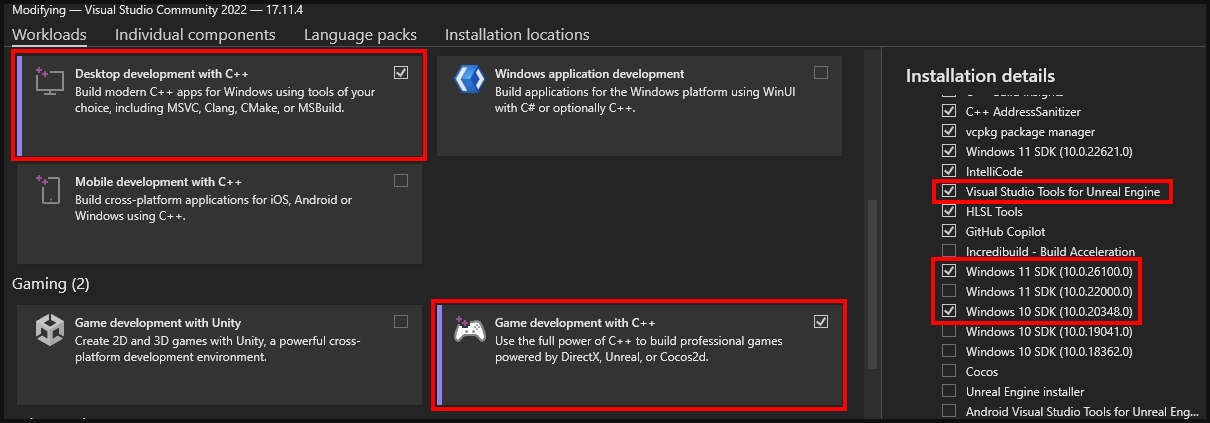
Follow the installation instructions, in the Workloads section, make sure to tick the following:
It is recommended to use the Epic Games Launcher, follow the instructions and install Unreal Engine 4.27.2 from the Unreal Engine section in the Library tab.
Generating Project Files
- Download or clone the SCP5K SDK, cloning is recommended for future updates.
You must switch to the 0.16 branch to use for the latest update!
- After downloading/cloning, right-click the
.uprojectandGenerate Visual Studio project files.
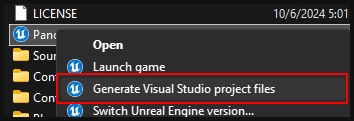
If the project generated successfully, a few new folders/files will show up. (e.g. the Intermediate folder and .sln file)
Compiling the Project in Visual Studio
- Make sure the solution configuration is set to
Development Editor Win64. - Right-click the Pandemic solution
(Pandemic.sln)and open withVisual StudioorRider. - After Visual Studio opens, find the
Pandemicproject, right-click andSet as Startup Project.
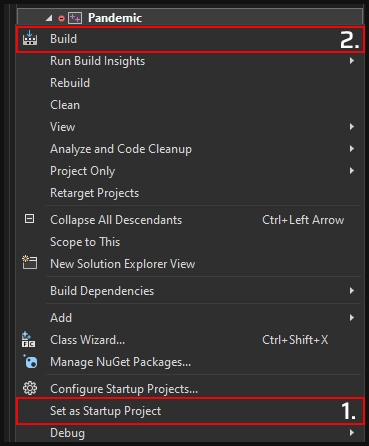
- Open the context menu again and
Buildthe solution.
Building projects can take a while, ignore the warnings and watch for any errors.
Opening the Project
- Extract the zipped
UE4Editor-PlanarCut. - Move the extracted file to
Binaries\Win64. - Open
Pandemic.uproject, the editor should startup and start compiling shaders. - Upon opening the project for the first time, you may see a few FMOD related warnings, you can safely dismiss those.
It's required to move the UE4Editor-PlanarCut.dll each time the project compiles, the editor will not start otherwise.
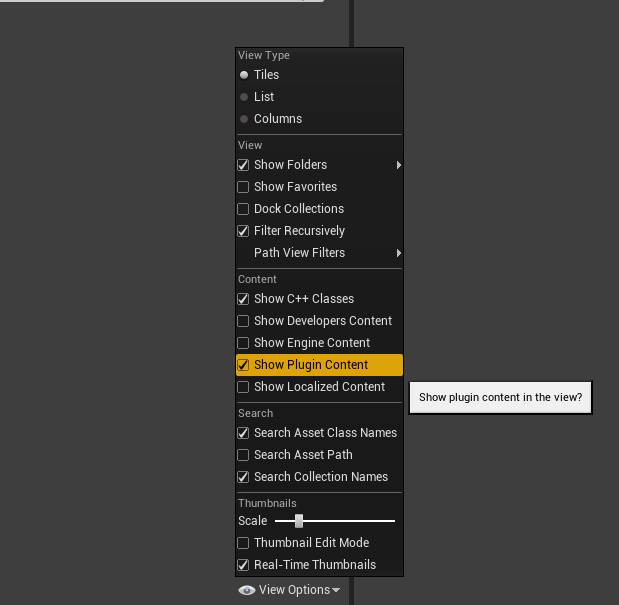
To see all content, enable Show Plugin Content in the Content Browser's View Options.